The Create Block button unites the chosen entities into a single block.
Quick Access Panel: 
Ribbon: Editor -> Instruments -> Create block
Menu: Draw -> Block -> Create block
To create a new block definition with a possibility to give it a user name the command Create block is selected. After its activation the dialog box Create block appears. The objects included in the definition can be selected either before activation of the command or from the dialog of creating a block. Block definitions are stored in the drawing.
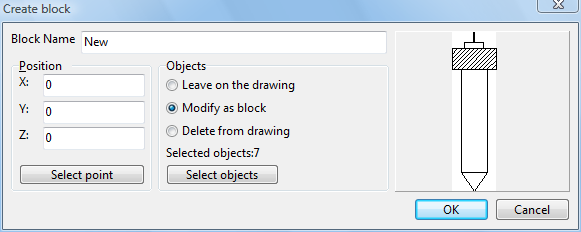
Block name
Here you can enter the name of the block. It should be unique for each block and can not be changed. It is impossible to create several blocks with identical names.
Position
Use this section to select the coordinates for the insertion of the block. It is possible to select a point to paste the block only if the option Modify as block is active. If another option is selected the point of block insertion will be its upper left corner. The data can be input both from the keyboard or shown in the drawing itself. In order to select the necessary point right in the drawing please press Select objects after which you'll be able to mouse-click in the drawing to show the necessary placement. The default setting for the point of insertion is the zero point.
Objects
This section provides options for choosing a set of objects to be added to the block and for defining the actions that are going to be performed with the selected objects. Pressing of the button Select objects brings you to the window of the drawing field so that you can mouse-click on the necessary objects which should be united into a block. The choice of several objects is possible with the use of Fast entities input  option. The selection is confirmed with pressing the key Enter after what the dialog box "Create block" appears. In its preview area you can see the selected objects. One can also select the needed objects preliminarily before opening the dialog box "Create block". The number of objects a block consists of is displayed in the field Selected objects.
oLeave on the drawing - creates a block definition for the further usage - without inserting it into the drawing. The selected objects stay unchanged - they are not united into a block. You just create a block out of these objects that can be used later anytime when it is necessary using Paste Block option.
oModify as block - the selected objects are deleted and instead of them a block reference is created after creating its definition.
oDelete from drawing - creates a block definition without inserting it into the drawing. The selected entities are deleted from the drawing. Such block can be inserted into the drawing anytime.
All the blocks you create will be available for insertion under Paste block feature.
The navigator area in the right part allows previewing the block. Left-click on the navigator field to drag the preview picture. Use the mouse wheel to scale it.
The selected settings are saved in the drawing and are available after closing the file.
Go to ABViewer