The Thumbnails button calls the Thumbnails window. It shows all the files in a folder as small miniatures.
Quick Access Panel: 
Ribbon: Viewer -> Browse -> Thumbnails
Menu: File -> Thumbnails
Hotkey: Ctrl+T
This feature allows you to find the necessary file easily by its contents - when you don't remember the name of the file. See the screenshot below. Please note that this concerns only those files that are supported by ABViewer.
The dialog window Thumbnails is available via the Start menu in the section with the installed program. The work with the dialog window can be performed without opening the program window. Double left click over the miniature of the file opens the drawing in ABViewer window.
Thumbnails window:
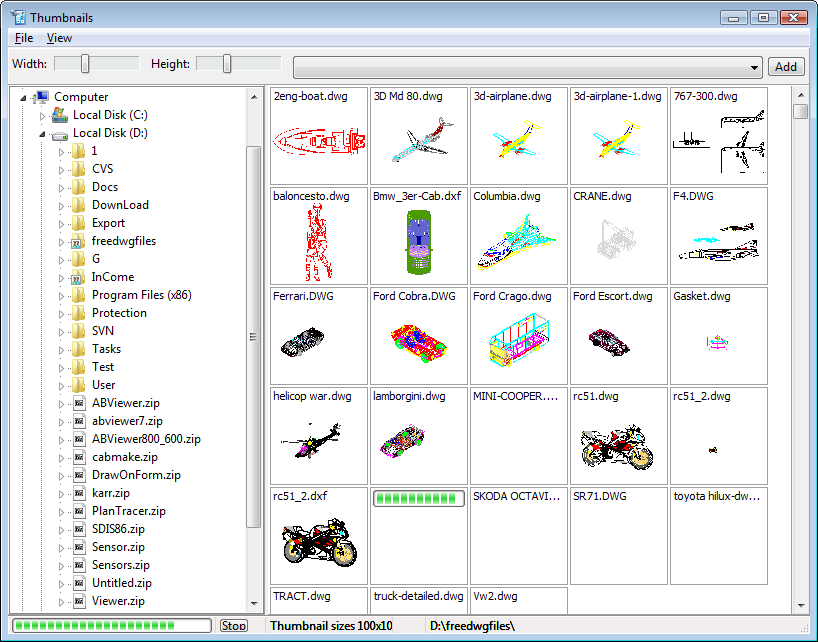
Thumnails window
 - You can regulate the width of the Thumbnails with the help of this option
 - Regulate the height of the Thumbnails with this option.
 - use this button (in the top right corner) to add the current file to the Thumbnail database for an easy access to it later. Its name will appear in the menu on the left of the button and the Add button will change its name to Delete thus pressing this button for the second time will delete the file indicated in the menu from the list of Thumbnails for quick access.
•Thumbnails: File menu
•Add Folder to Thumbnail Database
Once created, a Thumbnail of a certain file is added to a special Thumbnail Database, so that next time it is loaded from this database, and not created anew. That is why their reading becomes faster every turning to the folder. But if you open a folder which contains many files, Thumbnails will be created only for those files that are visible in the window. In order to see the rest of the files as Thumbnails you need to move the vertical slider in the right part of the window down.
In order to create Thumbnails for the whole folder you can use the option "Add Folder to Thumbnails Database' in the file menu of the dialog box Thumbnails. In the Select Folder dialog box choose the directory to be added to the base with the left mouse button. Press OK. The Select Folder window will close and the directory will be opened automatically. The path to the added folder will be available from the drop down list in the panel under the main menu of the Thumbnails dialog box.
To add files from the current folder to the thumbnails base select the folder in the tree structure of the Thumbnails window. Press Add in the panel under the main menu. The path to the current directory will be added to the drop down list for the quick access to the directory and the button Add will turn into the button Delete.
oCompress Thumbnail Database
This command deletes Thumbnails for non-existent files from the Thumbnail Database. It is recommended to compress the database this way regularly.
oClear Thumbnail Database
Deletes the created Thumbnails from the Thumbnails Database.
oSettings
Here you can set the maximum size and location of the Thumbnails database.
•Thumbnails: View menu
oArrange Thumbnails
Use this option to define the principle the thumbnails are arranged by - by the name of the Thumbnails, by their extension or by creation date.
oRefresh
Refreshes the Thumbnails window showing the changes made in the current folder.
Go to ABViewer