The Match Properties button copies the selected properties of the selected entity and applies them to one or more other entities.
Quick Access Panel: 
Ribbon: Viewer -> CAD Image -> Layers or Editor -> Draw -> Layers
Menu: CAD Files -> Layers
It is possible to match the following properties: color, layer, linetype, linetype scale, lineweight, hatch pattern. When copying text properties additional properties are added: text style, rotation, width factor, obliquing.
By default all the available properties are selected for copying. For some properties not to be copied, uncheck the corresponding fields in the dialog box "Select Properties". The dialog box is called via the context menu after specifying the initial object.
Copying Properties of an Object and Assigning them to Another Object
Way 1.
1.Activate the tool Match properties.
2.Select the initial object the properties of which you want to copy.
3.Press the key Enter to confirm the choice.
4.Click with the left mouse button and select the option Select properties. The dialog box Select Properties with a list of available for copying properties will open. For example, when copying properties of a text the following properties will be presented in the dialog box Select Properties:
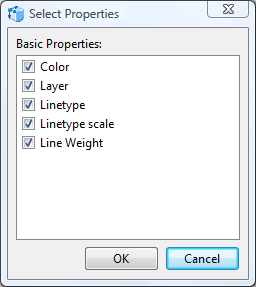
Deactivate the properties that shouldn't be copied.
5.Specify the object to which the selected properties should be assigned with a left mouse click. The properties will be changed immediately without the need to confirm with the help of the key Enter.
6.Press the key Esc to quit the match properties mode.
Way 2.
1.Select the initial object the properties of which you want to copy.
2.Activate the tool Match properties. There is no need to confirm the selection with the help of the key Enter.
3.Click with the left mouse button and select the option Select properties. The dialog box Select Properties with a list of available for copying properties will open. Deactivate the properties that shouldn't be copied.
4.Specify the object to which the selected properties should be assigned with a left mouse click.
5.Press the key Esc to quit the match properties mode.
The Notion of Entity Properties
Go to ABViewer