The Merge button allows to merge of two or more CAD format files.
Quick Access Panel: 
Ribbon: Editor -> Draw -> Merge
Menu: Draw -> Merge
You will see the Merging parameters dialog box which allows defining the position, the scale and the rotation angle for the inserted drawing:
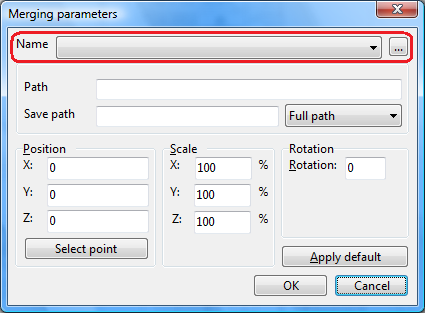
•Name This field contains a list of files that were inserted into the current drawing as external links ans allows to select them to add to the drawing once more. The list contains only the file name and the extension. When the file is deleted from the drawing it still stays in this list. To delete the external link completely use the command Purge.
The browse button  will allow you the selection of the necessary file. It will be added to the list after pressing the OK button.
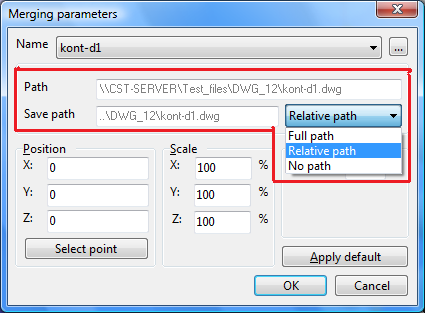
•Path. This field is filled in when adding the file and can't be changed later. You can select the type of the path to be saved from the drop-down menu on the right of the Save path part. When moving the file to another PC or folder, the search for the external link will be fulfilled according to the saved path.
•Full path specifies the path to the file from the root directory. It consists from the directory letter with a colon and a double slash after it, then all the subfolders separated by a slash are enumerated with the name of the file is at the end.
•Relative path is the path relative to the current directory of the active file. It can't be set if the drawing wasn't saved. If the file to insert is in the same directory as the active one the relative path to it will contain the folder name, the name of the file to insert and the extension. If the file to insert is one level lower, the relative path will consist from the folder name, the file name and the extension.
•No path means that only the file name and extension will be saved. For a correct opening of the end file it is required that the merged files are stored in the same folder.
Note: It is impossible to modify the external link name and path. If the file isn't found with the saved search path, it will be searched for in the folder containing the drawing.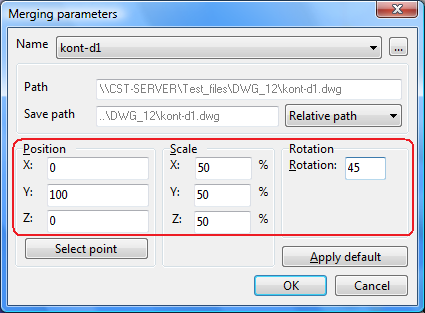
•Position. Scale. Rotation. Define the insertion point, the scale and the rotation angle of the merged file by entering the corresponding values from the keyboard:
Position - allows the selection of the point in the drawing where the merged file is to be added. The insertion point is the left bottom point of the drawing rectangle. It is also possible to select the insertion point right in the drawing. For that press the Select point button. The field of the drawing appears. Click on the necessary point after which the corresponding "Position" fields will be filled with the coordinates of the selected point.
Scale - regulates the scale of the merged file.
Rotation defines the rotation angle of the added file around the "z" axis in the clockwise direction.
Apply default Press this button to give the merged file the default values which are zero coordinates and rotation and 100% scale.
Go to ABViewer