You can create user's tabs with a set of frequently used tools placing them at the top of the program window. You can also add and remove commands to/from the quick access panel. Customizing the ribbon and the quick access panel is performed in the dialog box Ribbon Editor. By pressing the the down-directed arrow to the right of the last command in the quick access panel you will see a drop-down menu. Select the element to customize.
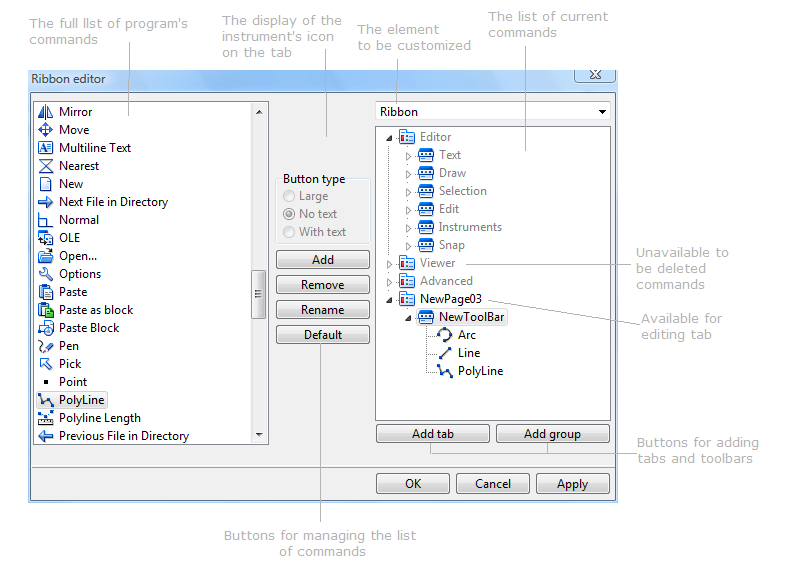
You will see the dialog box called Ribbon Editor. In the right upper corner select ribbon or quick access panel in the list box depending on what you want to customize.
Depending on the choice of the object to be customized the corresponding elements are loaded. If the ribbon is edited you'll see the hierarchy Tab-Section-Tool. If you are customizing the quick access panel it is the commands, which it contains, that appear in the right field.
Default tabs and tools on them can't be edited or removed. In the list of current commands they are marked by the grey color. Tabs created by the user can be edited and deleted.
The buttons performing the function of adding a new tab or a new section are above the field of the current commands list in the right bottom corner of the current dialog box. They are Add tab and Add group. A tab is added to the end of the list. When creating a group you should preliminarily select the tab where you want it to be placed. The order of groups in the list can't be changed. It is also impossible to move them from one tab into another.
Commands are added to the earlier created groups. All the available tools are presented as a list in the left field of the dialog box Ribbon editor. This list is connected with the list of current commands by means of the buttons "Add', "Remove", "Rename", "Default". Meanwhile the element to be added is selected in the list of available commands and the panel where you wish to place the element is selected from the list of currents commands. You can change the position of the instruments, that were added to a group with the help of the mouse.
The section Button type allows to select the way the icon of the instrument will be displayed. By default, all the added commands will be displayed as small icons without text. The button type can be changed for the tools that have been already added, which are in the list of current commands. The button type can be changed only for the instruments that were added by the user. In the quick access panel only small buttons without text can be used, that is why these settings are not active while editing the list of instruments in the quick access panel.
Creating a Tab
1. In the dialog bow Ribbon editor press Add tab. A tab with the name "NewPage03" will be added.
2. Select this tab in the list of current commands with the left mouse button.
3. Press the button Rename and enter a new name, for example, "Custom" and press Enter.
4. Press the button Add group. A group with the name "NewToolBar" will be added to the tab "Custom".
5. Select the group "NewToolBar" with the left mouse button.
6. Press the button Rename and enter a name, for example, "Editing". Confirm the change by pressing Enter.
7. Add two more groups to the tab "Custom" and rename them as "Measure" and "Color" correspondingly.
8. Select the group "Editing" with the left mouse button.
9. Find the command Paste in the list of available commands, which is in the left part of the dialog box Ribbon editor and left mouse click on it
10. Press the button Add. The command "Paste" will be added to the panel "Editing".
11. Add the commands Paste as block and Purge to the tab "Editing" in the same way.
12. Select the group "Measure" with the left mouse button and add the commands Area, Distance and Polyline length to it.
13 Add the commands B/W Drawing and Black background to the toolbar "Color".
14. Press Apply to save the changes.
Changing the button type on the tab.
1.Select the command the icon of which you want to change in the list of current commands of the tab to be edited (i.e. the tab that was created by the user) with the help of the left mouse button. After that the section Button type will become active.
2.Choose the necessary button type for the chosen command:
•Large. The display of the command in the ribbon is performed with the help of a large button with text.
•No text. The command is displayed in the ribbon as a small button without text.
•With text. The command is displayed in the ribbon as a small button with text.
3. Press Apply.
Go to ABViewer