The ribbon is a panel containing a set of tabs with control elements grouped according to the functionality. The ribbon interface makes access to the commands easier, quicker and more convenient, helps to discover all the possibilities of the program. The ribbon is in the upper part of the screen. It is impossible to move it, but the ribbon can be minimized up to the tab names.
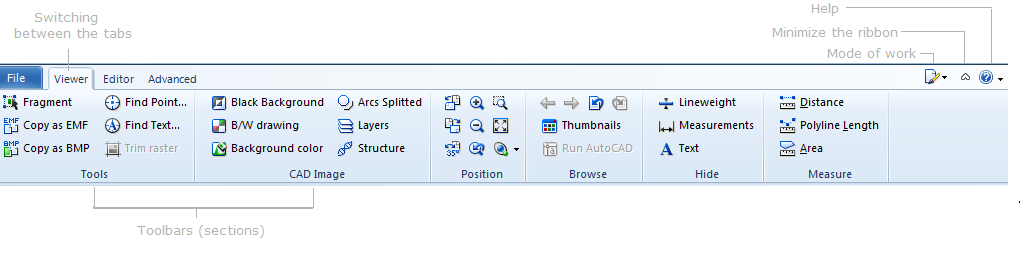
By default ABViewer ribbon consists of four tabs: File tab, Viewer tab, Editor tab and Advanced tab. They can't be deleted or changed. The user can add new tabs with any commands. Tab names reflect the character of instruments they contain.
•File tab deals with managing files. It contains commands, performed over the files like creating a new one, opening an existing drawing, printing, saving, file information and so on.
•Viewer tab contains various tools for convenient viewing of files: positioning, measuring etc.
•Editor tab comprises tools for drawing and editing files. It is active in the modes Editor and Redline.
•Advanced Tab contains a group of commands Redline. They become active by switching to the mode Redline and allow to fulfill saving and loading the redline file as well as to manage the visibility of the markups of the current drawing. The commands from the group “Favorites“ allow to manage the list of favorite files. In addition to that this panel also has the commands for the access to the floating panels Favorites, Explorer and Properties.
To move in the ribbon you need only to click with the left mouse button on the needed tab and icon. To minimize the ribbon left click on the corresponding icon -  which is in the right top corner. Double left click on the tab name fulfills the same function. To return to the previous state click on the icon
  . When the ribbon is minimized, menu is called by clicking on the tab name. After the cursor is moved to the working space, the tab will be minimized.
To call the help window press F1 or click on the help icon  . If you click on the black arrow on the right of the icon a drop down menu will appear. It will offer you to choose from a list of variants:
You can customize ribbon according to your needs and wishes.
To switch between the classical view of menus and ribbon style use the option Ribbon Menu Style in the tab Common of the dialog box Options.
Go to ABViewer