The Table button allows drawing a table.
Quick Access Panel: 
Ribbon: Editor -> Draw -> Table
Menu: Draw -> Table
A table is a rectangular system of cells which form a framework of the table. The data in the table are organized in columns and lines. In ABViewer it is possible to create new tables and to edit the existing ones. Editing tables that were created with the help of other applications is possible only with DXF files. In DWG files tables are presented as blocks, thus they are edited like blocks.
Creating a Table
To create a table the command Table is used. After selecting a rectangular area which the table will fit, the dialog box "New Table" appears, where the starting parameters are entered:

•Columns. The number of the table's columns.
•Rows. The number of the rows of the table.
•Table Style. The list of styles of a table, that are used in the current file. Only one style STANDARD ist available for a new file. It is impossible to create a custom style for tables in ABViewer.
•Auto text height. The Option is used to automatically select the text height in all the cells of the table according to the cell height. If the option is off the text height is equal to 0,18 regardless of the table size.
To add a table
1. Click .
2. Click to start drawing the first corner or enter the coordinates via the dynamic input.
3. Drag the pointer diagonally in the direction you want, to draw a square-cornered shape.
4. Define the number of columns and rows of the table. After you finish it press OK.
5. Edit the table in the opened dialog box and press OK.
6. A table consisting from the stated number of rows and columns will be created.
Editing a Table
The contents of a table is edited in the dialog box Table. This dialog box appears automatically after adding a new table to the drawing. You can turn to the mode of editing an earlier created table in the following ways:
1. Double click on the table with the left mouse key.
2. Select the command Edit table from the context menu of the table.
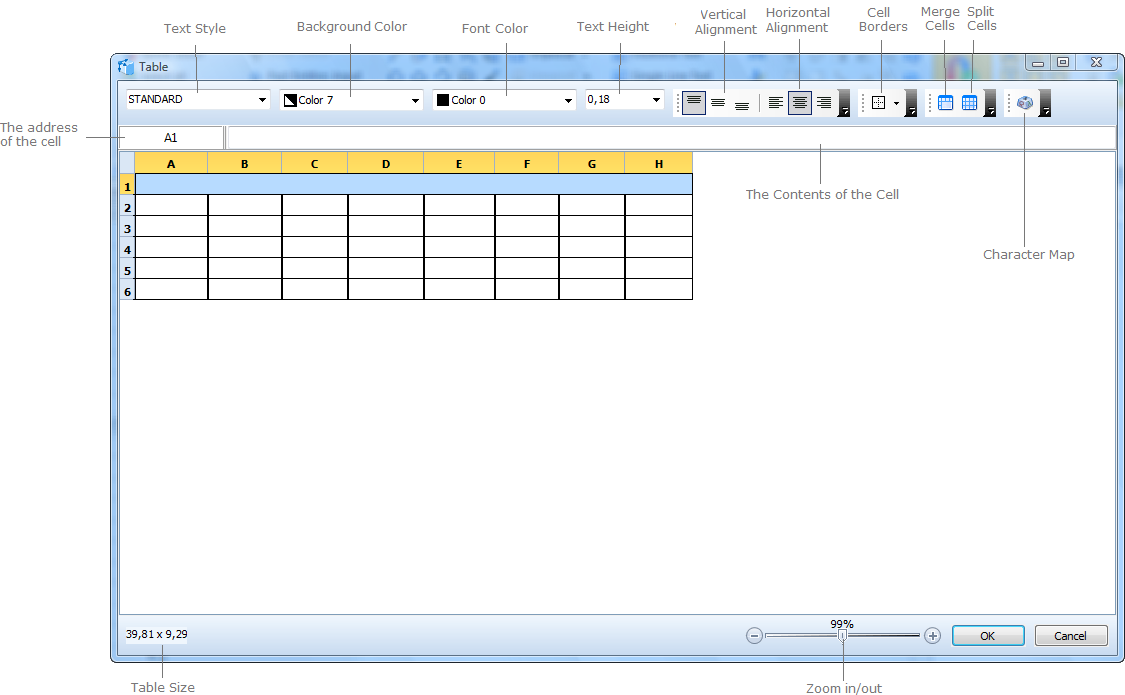
You can edit the contents of a cell in the following ways:
1. Set the mouse cursor in the cell to be edited and enter a new string of text. All the text that was in the cell will be deleted and replaced by a new one.
2. Double click on the cell to be edited with the left mouse button and shift the cursor to a needed position with the help of the arrow keys Left and Right on the keyboard.
3. Select a cell and press F2. Shift the cursor to a needed position with the help of the arrow keys Left and Right on the keyboard.
4. Select a cell, it will be marked with blue. In the field of the contents of the cell which is on the right of the cell address set the cursor in a needed position.
If you press Esc during input the current changes will be canceled. To confirm the changes press Enter or Tab. By pressing Tab you'll switch to the next cell.
The borders of the table or its separate cells can be forbidden to be plotted. In the drawing such border will be shown with grey. To hide all the intermediate cell separators and print only exterior borders do the following:
1. Press Ctrl+A to select all the cells of a table.
2. Click on the black down directed arrow  and select the command No Border.
3. Without deselecting the cells press the down directed arrow once more and select the command Outside Borders.
4. After that all the inside borders will be marked with grey and in the preview window they won't be seen.
You can reset the parameters of text view for each cell separately. The executed settings will be applied to the whole text in a cell. By default all the cells have the same editing parameters: text style is "STANDARD", text height is "0,18", font color is "0", vertical alignment is "top align", horizontal alignment is "center".
Changing the Height and Width of the Cells
The size of columns and rows can be change with the help of the mouse or by entering the values into the corresponding field. To change the size of a row or a column point the mouse cursor on the border of the cells in the field of the line of names and after the cursor changes its form edit the size holding the left mouse button pressed. You will see the current value of the changed parameter.
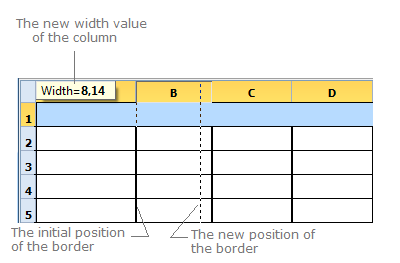
To set the exact value of the column width or the row height select the changed column or row and choose the corresponding command Row Height or Column Width from the context menu. In the appeared window enter the new value and press Ok.
The commands Distribute Rows Evenly and Distribute Columns Evenly are available from the context menu. Select the cells which must have the same width or height and select the corresponding command in the context menu. The width and the height of the selected cells are averaged the table size doesn't change.
Note: By changing the cell height or width the total height or width will change respectively.
Merging and Splitting Cells
The command  Merge Cells allows to unite several selected cells into a single one.To select several cells select the first one and then holding the left mouse button pressed specify the rest of the cells. You can also select the cells with the Shift key pressed.
The command  Split Cells executes the reverse function and can be applied only to the earlier merged cells.
Note: You can't remove the title row but you can transform it into an information row by splitting the cell. You can't add or remove rows and columns.
Search through the Table
To pass to the edited cell you can enter its address into the field of the cell address. It is also possible to make use of the search through the contents of the cells. To call the search line click with the right mouse button within the table borders and select the command Search or use the hotkey Ctrl+F. In the bottom part of the table editor you will see the search line: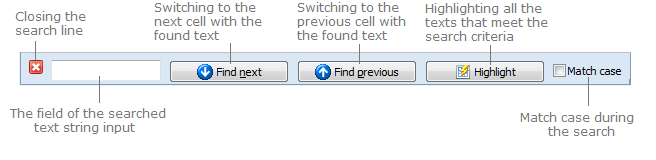
In the input field specify the text combination you want to find. The search begins automatically after entering a symbol into the filed. The coincidence of the entered symbol with the first letter of the word is searched for. If there are no such coincidences the search switches to the next word. If no word combination is found the entered symbol is marked with red.
Go to ABViewer