The Find Text button provides the search of the required text string.
Quick Access Panel: 
Ribbon: Viewer -> Tools -> Find text
Menu: Edit -> Find text
Hotkey: Ctrl+F
The search for the textual string in the drawing is performed according to the given criteria. The choice of the command Find text... activates the dialog box "Find text". Clicking on the button [More>>] will open the additional parameters of the search. The name of the button meanwhile changes into [<<Less]. If the additional parameters of the search are opened they are taken into account while search for the text. That's why if the font name and the height are unknown it is recommended to hide the additional parameters, as if even one criterion doesn't fit the text string won't be found.
The command Find switches to the find mode. If any text lines in the drawing fit the criteria the first found text will be shown and the dialog box "Find text" will be closed. If there were no matches the corresponding dialog box will appear. After the closure of this window the dialog box "Find text" will be opened automatically to specify the search data.
The search is performed according to the date of the text creation and the first found text string will be the one added to the current drawing first. Switching between the search results is performed with the help of the keys F3 and Shift+F3.
The dialog box Find text provides the following options:
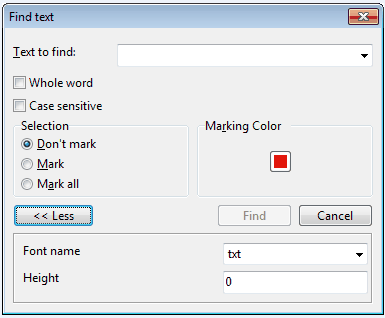
•Text to find - you can enter the text here or use the variants from the drop-down list of the search attempts. While entering the text or its part you should mind the case.
•Whole word - defines whether the entered set of characters in the Text to find field should match completely the found text in the drawing or it can be a part of the found text. Please note that letter case affects the match between the searched text and the text in the drawing.
•Case sensitive - if this mode is on, letter case will be taken into account during the text string search.
•Selection - sets the parameters of highlighting the text in the drawing which contains the sought-for combination of symbols. It is available to select only one parameter.
oDon't mark - the found text is not highlighted in any way, but the drawing is scaled to show the found text fitted into the whole drawing field.
oMark - the found text is highlighted by a circle or rectangle. While going to the second found text fragment it becomes highlighted while the previous one has no more any circle around it. Press Esc key if you wish to undo the selection with the circle. To switch between the search results press F3 or Shift+F3.
oMark all - all the pieces of the found text are highlighted by rectangles. Use Esc key to undo the selection.
•Marking color - selecting the color of the circle or the rectangle, which is used to highlight the found text in the drawing. By default the red color is set. To change the color left click on the square of the set color. The dialog box "Select color" will open.
Additional Search Parameters
oFont name - this section will give you the possibility to enter the font of the searched text as one more search parameter.
oHeight - if the height of the searched text is important please use this setting to make the search more exact.
Go to ABViewer