The Measure panel is a floating resizable movable panel. It displays all the measurements in the current session of the program.
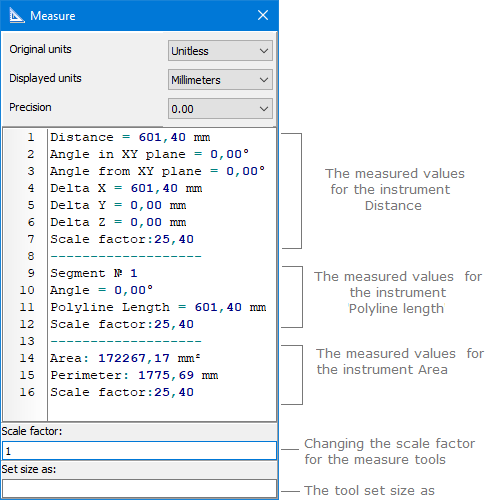
The panel appears automatically after selecting one of the measure instruments. After quitting the measure mode the panel is hidden. All the settings are performed in the tab Measure of the dialog box Options: the visibility of the panel, the scale factor, and the units of measurements are set.
The panel Measure has two additional fields for the tool Distance: Set size as and Scale factor.
The function Scale factor sets the scale factor of the current measure units for the active file. It doesn't influence the setting Scale factor in the tab Measure of the dialog box Options and is used only for the drawing in which it was changed.
The function Set size as also changes the scale factor but it is calculated as a correlation between the entered value and the real value of the measured distance.
In the Original units/Displayed units fields, you can set the required units of measurement.
In the Precision field it is possible to set measurement precision.
The context menu can be activated by a right-click over the Measure window:
oCopy. [Ctrl+C] It is possible to copy the results of measurements to the clipboard using the context menu which can be convenient if you need to copy this or that value and, say, attribute it to another entity. So you can select the necessary value and enter it in the corresponding "Properties" cell.
oSelect all. [Ctrl+A] Use this option to select all the measurement results contained in the "Measure" window.
oClear. [Del] Clears the window of the measurements.
oGo to... [Alt+G] Finds the measurement under the necessary number in the "Measure" window.
oPrecision. Sets the precision of the parameters.
oSave as. Saves results of measurements to a TXT file.
The option Set size as... allows to get the precise measurements of any parts of the drawing even if the elements of the drawing are performed in different scales. This option automatically calculates the scale factor as a correlation between the given value and the real one. The Value of the scale factor is specified in the field Scale factor of the Measure tab of the Options dialog box.
Suppose there is a drawing of a detail and its fragment in a larger scale. To get the real size of the increased fragment of the detail while measuring it is necessary to set the corresponding scale factor. Let's do that with the instrument Set size as...
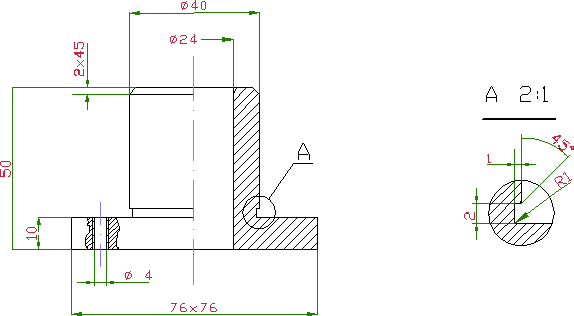
1.Activate the tool Distance of the section Measure.
2.Measure any part of the main view of the detail using the snap mode [F9]. For example, measure the top part of the detail, the diameter of which is equal to 40. The measure line is colored in the picture in red. The results will be shown in the panel Measure.
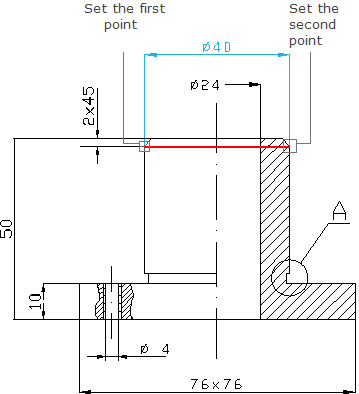
3.Set a new value for the measured distance. For the fragment of the detail to be measured in real values in the panel Measure, enter a new value for the measured distance in the Set size as... field minding that the detail is shown in the scale of 2:1. So, the new value for the measured distance will be equal to 20. Enter this value into the field Set size as... and press Enter.
4. Fulfill the measurements.
Go to ABViewer