The Distance button provides measuring the distance between two points in the drawing in the planes parallel to the plane XY.
Quick Access Panel: 
Ribbon: Viewer -> Measure -> Distance
Menu: Tools -> Measure -> Distance
Hotkey: Ctrl+D
The measurements are performed with the help of the mouse. The start and the end points are specified. Snap is available, that makes the process of measuring easier and more convenient. The mode Ortho is unavailable. All the results are displayed in the panel "Measure" and are stored in the Measure window. Previous measurements are separated from the current ones with a dash-line. Clearing the panel is performed automatically after closing the program or by the user (for more details see the topic Measure Panel). At the moment of measuring it is possible to scale and move the drawing with the help of the mouse scroll and its right button. You can quit the measure mode by pressing Esc.
•Click .
•Click on the starting point of the measured distance.
•Click on the end point.
The results of measuring will appear in the following window:
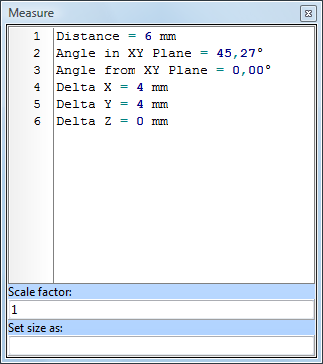
oDistance is the distance between the two points.
oAngle in XY Plane is the angle value between the vector of the specified line and the X axis of XY plane.
oAngle to XY Plane is the angle value between the vector of the specified line and its projection in XY plane.
oDelta X is the length of the measured line's projection on axis X
oDelta Y is the length of the measured line's projection on axis Y
oDelta Z is the length of the measured line's projection on axis Z
The Measure panel for the instrument Distance is a little different from the one for the other measure instruments: there are two additional fields. The first one is "Set size as..." which allows to enter the real distance of the measured distance and to preset a common for all the measure instruments scale factor that influences the results of the following measurements. The second field Scale factor allows to enter a coefficient to receive the needed values.
To get the expected values in the Measure panel, you should preliminarily set the initial measure units of the drawing and the ones in which the measure results should be displayed. Depending on the selected units the scale factor taking part in the interconversion of the initial units into the displayed ones is calculated. There are three available preset categories of units: meters, millimeters and inches. These settings of the measure instruments are available from the Measure tab of the Options window.
Note: For exact measurements we recommend to use the Snap  feature (Editor Tab -> Snap).
Go to ABViewer