The Bevel button creates a bevel between two points.
Quick Access Panel: 
Ribbon: Editor -> Instruments -> Bevel
Menu: Tools -> Modify -> Bevel
If the segments intersect - superfluous parts are automatically cut off after the use of this tool. If the line segments do not intersect, the segments can be extended.
Example 1: intersecting lines
before: 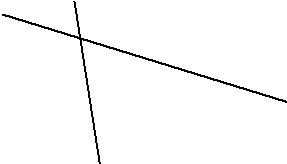 after: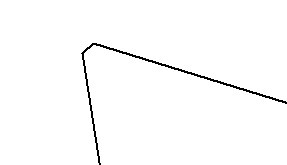
Example 2: non intersecting lines
before: 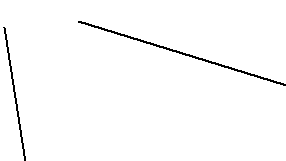 after: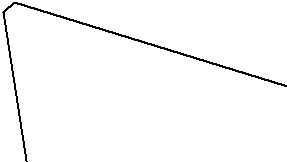
Note: bevel's value is available for changing:
To create a bevel between two lines:
1.Select the first line segment;
2.Press the Bevel button;
3.Place mouse cursor over the drawing field; the field in the dynamic input shows the current bevel value  (physically this is the distance from the intersection point to the sections' cut off points). Enter the new value.
4.Press the Enter key;
5.Select the second line segment.
Go to ABViewer