The tab contains settings for snap, ortho and polar tracking.
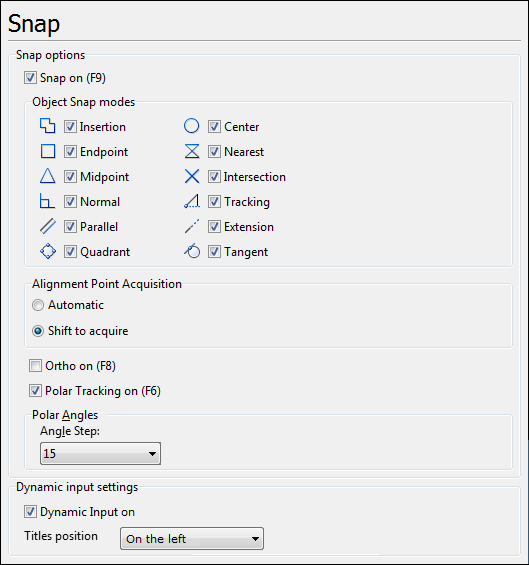
Snap Options
•Snap on (F9) - switches snap mode on or off. Is used in combination with the Object Snap modes. The command is also available from the Editor tab.
•Object Snap modes - this section contains a list of snap modes. The option can be also found under the Editor tab. The Object Snap modes set the points to which the cursor will snap while creating or editing an object. Mouse cursor turns to the respective shape when it is pointed at any of the active snap objects.
•Alignment point acquisition allows to select the mode of setting tracking markers:
oAutomatic - alignment points are acquired automatically in the points where the snap to Intersection, Endpoint, Midpoint, Normal, Quadrant, Center, Insertion and Tangent has been detected.
oShift to acquire - alignment points (Intersection, Endpoint, Midpoint, Normal, Quadrant, Center, Insertion and Tangent) are acquired only when the key Shift is pressed. The setting is convenient when a drawing contains a lot of entities and you want to avoid acquiring unwanted alignment points.
•Ortho on (F8) - switches orthogonality mode on or off.
•Polar Tracking on (F6) - switches Polar Tracking mode on or off.
•Polar Angles - defines the step for polar angle. The value is selected from the listed angles and can be 1, 5, 10, 15, 18, 22.5, 50, 45, 90. By default the polar angle value is 15. This setting is used in combination with the polar tracking mode and defines to which angles it will be stuck.
Dynamic Input Settings
•Dynamic Input on - switches the dynamic input while creating and editing elements on/off.
•Titles position defines whether the titles in the dynamic input form will be situates on the left or on the right.
Go to ABViewer